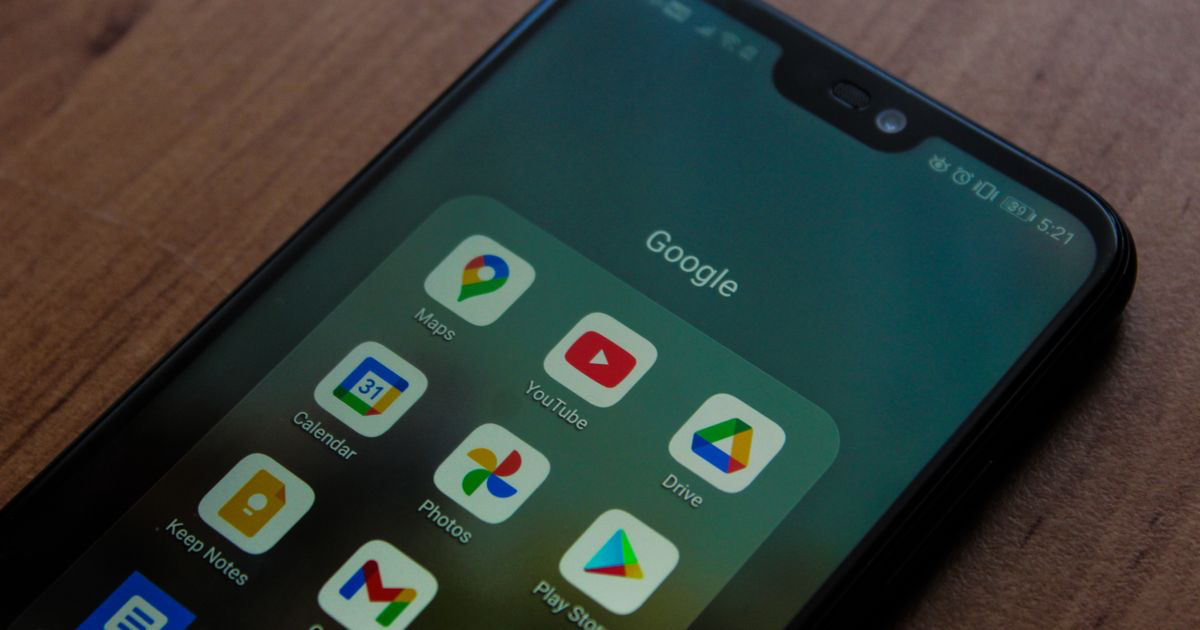
How to Edit Nail Photos on Android
Quick answer: Skip the Google Photos auto-enhance and install Snapseed, which is free. Use White Balance first to remove the salon yellow, then Tune Image for brightness and contrast, then Selective to fix the skin without touching the polish. Snapseed 4.0 added batch editing, so a whole set takes one pass.
Android phones have a habit that catches nail techs out. Samsung, Pixel and most of the Chinese makers process heavily for punch, so the photo that lands in your gallery has already had contrast and saturation added before you open anything. That processing is tuned for faces and skies, and on a nude BIAB set it is simply wrong.
Why do Android nail photos look over-processed?
The phone finished the photo before you got to it.
Most Android makers apply strong scene detection and colour boosting at capture. Point a Samsung at a hand and it often decides skin is the subject, warms it further, and lifts saturation across the frame. Point a Pixel at a dim salon and its computational processing brightens the shadows aggressively, which flattens exactly the depth that makes a nail look three-dimensional.
Combined with a warm overhead bulb, you get the standard Android nail photo: orange skin, a gel two shades off, and a strangely flat surface where the shine should be.
Turn off the scene optimiser before you shoot. On Samsung it lives in the camera settings as Scene Optimiser, on many others it is called AI Camera or similar. Switching it off gives you a plainer file that is much easier to correct.
Is Google Photos good enough for editing nail photos?
For a crop, yes. For colour, not really.
Google Photos gives you Enhance and a set of sliders, and the Enhance button has the same flaw as every automatic tool: it assumes the photo should look punchier. On nail work that means added contrast, boosted saturation and lifted shadows, which pushes a warm salon photo further from the truth rather than closer to it.
Its manual sliders are usable but shallow. There is a warmth control, but no proper white balance picker, so you are guessing rather than neutralising against something white in the frame. For a quick crop and straighten before a story, fine. For the photo a client books from, it is not enough.
Which free Android app actually edits nail photos well?
Snapseed, by a distance that makes the rest of the list look like padding.
Google gave Snapseed its first significant update in years in May 2026, releasing version 4.0 on Android and iOS together with a redesigned interface, one-touch masking, an in-app camera and, for the first time on Android, batch editing, according to 9to5Google. The current release is 4.0.1 from May 2026, per Wikipedia. It remains completely free with no subscription, no watermark and no ads, which makes it the best value tool in mobile photo editing by a wide margin.
A handful of its tools do almost everything a nail photo needs, and White Balance is the one that matters most. It has an eyedropper: tap that on something in the frame that should be neutral, a white towel or a piece of paper, and the salon cast disappears in one move. This is the tool Google Photos does not give you, and on its own it is the reason to install Snapseed.
Tune Image covers brightness, contrast and saturation, plus an Ambiance slider worth knowing about. Small moves only, since Ambiance in particular gets ugly fast.
Selective is the one that solves the problem ruining most nail edits, where correcting the polish wrecks the hand. It places control points on specific areas, so you can drop one on the back of the hand and desaturate the skin slightly without the gel shifting at all.
CapCut is the other free app worth keeping on an Android phone, for a different job. It is built for the reels rather than the stills, and its photo tools shift colour the way a video filter does, so it is the wrong place to correct a salon cast.
What about Lightroom Mobile on Android?
It is excellent and most techs will not stick with it. The free tier covers the essentials and Premium runs about $4.99 a month through the Play Store. The control is genuinely better than Snapseed's, and so is the time cost, which is the part that decides it on a Saturday with four clients still to come.
How do you edit a whole set at once on Android?
This is the feature that changes the habit, and it arrived on Android only in May 2026.
Snapseed 4.0's batch editing lets you apply the same look and the same specific adjustments to a group of photos in one pass. Because the eight photos you shot of one client came from one light in one ten-minute window, they carry an identical cast and an almost identical exposure problem. One correction genuinely fits all of them.
Edit your strongest photo from the appointment properly. Then apply that treatment across the rest.
Which editing approach fits a working nail tech?
| Approach | Cost | Time per photo | Colour accuracy on gel and chrome | Consistency across your feed |
|---|---|---|---|---|
| Straight out of the Android camera | Free | None | Poor, over-processed and warm | Random, varies with scene detection |
| Google Photos Enhance | Free | Seconds | Poor, adds contrast and saturation | Low, guesses differently each time |
| Snapseed | Free | 2 to 4 minutes | Very good with White Balance and Selective | Good, better still using batch |
| Lightroom Mobile | Free tier, about $4.99/month | 3 to 6 minutes | Excellent | High once presets are built |
| NailTech | Low | About a minute | Good, tuned for nail finishes | High, same treatment every time |
What ruins Android nail edits most often?
Pushing saturation to rescue a colour that white balance should have fixed.
It is the most common mistake and it is understandable, because the gel looks dull and the saturation slider makes things look less dull. What it actually does is take an orange-cast photo and make it more orange, while turning the client's fingers a shade that does not exist in nature.
The second is over-sharpening. Snapseed's Details tool is strong, and nail plates punish it. Push structure too far and the surface picks up a gritty crunch along the free edge that looks worse at Instagram's compression than no sharpening at all. Small amounts only, and check at full zoom.
A one-minute Android editing routine
- Open the photo in Snapseed and tap White Balance, then use the eyedropper on a white towel or piece of paper in the frame.
- Go to Tune Image and lift brightness slightly, add a little contrast, and leave saturation alone.
- Use Selective on the skin, dropping a control point on the back of the hand and easing saturation down a notch.
- Crop to your standard shape and cut out the lamp base, sleeve and desk clutter.
- Batch the rest of the appointment with the same treatment rather than editing each one from scratch.
Where NailTech fits in
Everything above is a workaround. The eyedropper, the control points, the batch Looks: all of them are clever ways of borrowing a landscape tool for a two-centimetre subject, and knowing the right order to use them in is the rent you pay for the borrowing.
NailTech is a nail image editor built for the subject rather than adapted to it.
- Removes salon warmth without leaving the hand grey and lifeless.
- Evens skin tone independently of the polish colour.
- Keeps the highlight that makes chrome and cat eye read as metallic.
- Cleans the background without tracing round long tips.
- Treats a whole appointment the same way, which is what stops a grid drifting.
NailTech is currently an iOS app, so on Android the honest recommendation above stands: Snapseed is your free tool, and it is a good one.
Saturation cannot fix a colour cast. Every time you reach for it to rescue a dull gel, you are making the orange worse and taking the client's hand with it.
Make your nail photos look salon-ready
Download NailTech and clean up the lighting, skin tone and background on every set you post, in a few taps.
Download on App StoreFrequently Asked Questions
How do you edit nail photos on an Android phone?
Edit nail photos on Android using Snapseed, which is free. Use the White Balance eyedropper on a white object in the frame to remove the salon colour cast, then Tune Image for a small brightness and contrast lift, then Selective to ease saturation on the skin without changing the polish. Crop last.
What is the best free nail photo editing app for Android?
Snapseed is the best free nail photo editing app for Android. Google's version 4.0 update in May 2026 added batch editing to Android for the first time, along with one-touch masking and a redesigned interface. Snapseed has no subscription, watermark or ads, and its White Balance eyedropper handles salon colour casts better than Google Photos.
Why do my nail photos look over-saturated on Samsung?
Samsung phones apply Scene Optimiser processing at capture, which detects the subject and boosts contrast and saturation before the photo reaches your gallery. Combined with warm salon bulbs, this pushes skin orange and shifts gel shades. Turning off Scene Optimiser in the camera settings produces a plainer file that is much easier to correct accurately.
Is Google Photos enough for editing nail photos?
Google Photos is adequate for cropping and straightening nail photos but weak on colour. Its Enhance button adds contrast and saturation in ways that worsen a warm salon cast, and it offers no white balance picker to neutralise against a white object in the frame. Snapseed provides that control for free.
Can you batch edit nail photos on Android?
You can batch edit nail photos on Android using Snapseed, which added the feature in its version 4.0 release in May 2026. Photos taken during one appointment share the same lighting and colour cast, so editing your strongest image and applying that treatment to the rest produces a consistent set in a single pass.
Final Takeaways
- Turn off Scene Optimiser before you shoot, so the phone stops finishing the photo for you.
- Snapseed, not Google Photos, because the White Balance eyedropper is the whole game.
- Never fix colour with saturation. It deepens the cast and wrecks the hand.
- Use Selective on skin so correcting the gel does not cost you the fingers.
- Batch the appointment. One light, one cast, one correction.
- Go easy on Details. Over-sharpened nail plates look gritty after Instagram compresses them.
The order itself does not change with the handset, and correcting nail photos afterwards sets it out in full. To stop the cast at source, see the Android camera settings for nail photos and why your nail photos look yellow.
Hannah
Hannah is a co-founder of NailTech, the nail image editor that turns quick phone shots into portfolio photos. She worked in the beauty industry before moving into mobile design, and now owns product and design on the app.