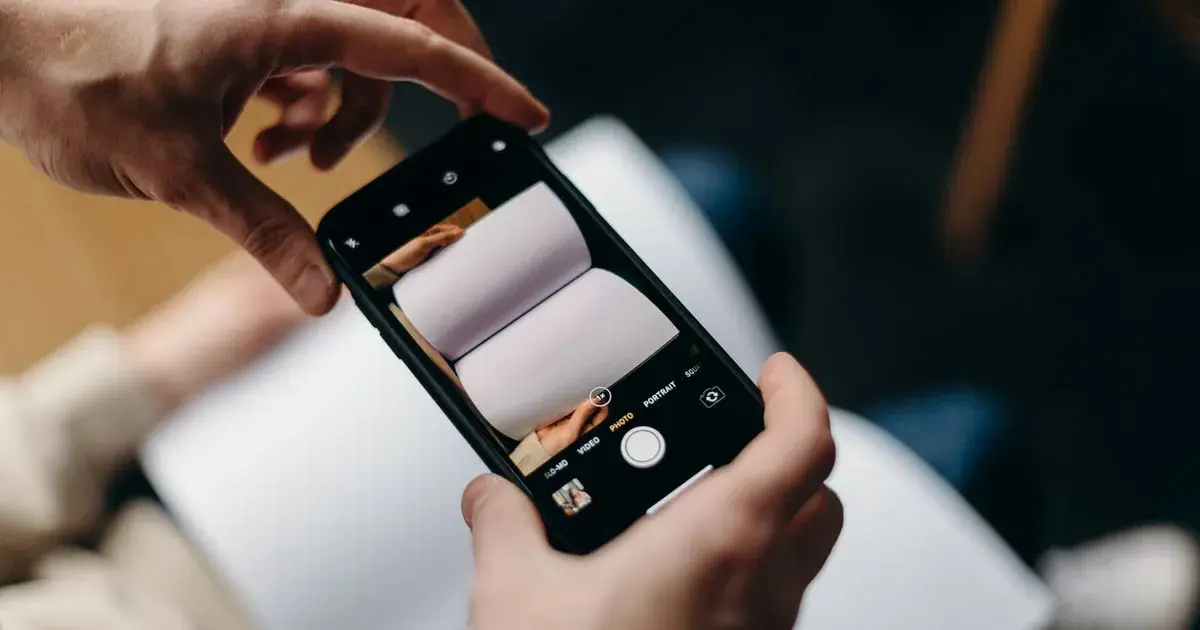
How to Edit Nail Photos in Snapseed
Quick answer: Open the photo in Snapseed, use White Balance and tap the eyedropper on something neutral to kill the salon yellow, lift Shadows and Ambiance in Tune Image, drop a Selective point on the nails to boost them without touching the skin, heal away dust, then copy the edit across the rest of the set. All free.
The set looked perfect at the desk. On the camera roll it is yellow, a little dark, and there is a speck of filing dust on the ring finger that you cannot unsee.
Snapseed can fix all three of those, it costs nothing, and after the 4.0 update it can even carry one edit across a whole appointment's photos. It just was not built for nails, so the order you use its tools in matters more than the tools themselves.
Is Snapseed still free in 2026?
Yes, and it is better than it has been in years. Google shipped Snapseed 4.0 in May 2026 on both iPhone and Android, with a redesigned home screen, smart masking, batch editing and new tools like HSL and Dehaze, according to PetaPixel. It still costs nothing, and there is no watermark waiting on your exports.
That makes it the strongest free nail photo editor you can put on a phone. The catch is that every tool in it is a general photography tool. Nothing in Snapseed knows that the two centimetres of gel in the middle of the frame is the subject, so you have to steer it.
What should you fix first in a nail photo?
The colour cast, always. Salon bulbs are warm, and until the yellow is gone every other slider lies to you: a photo that looks dark is often just orange, and brightening it first bakes the orange in.
In Snapseed, open Tools, then White Balance, and ignore the sliders. Tap the eyedropper icon at the bottom, then tap something in the photo that should be neutral, like the grey desk mat or the edge of a white towel. Snapseed measures the cast on that spot and removes it from the whole frame in one tap.
If nothing in the frame is neutral, drag the Temperature slider toward blue until the skin stops looking jaundiced, then stop. The most common Snapseed mistake on nail photos is overshooting into a blue-grey hand that looks worse than the yellow did.
How do you brighten a nail photo without washing it out?
Not with the Brightness slider. Brightness lifts everything including the highlights, and glossy gel already sits close to pure white where the light hits it. Push Brightness and the shine spot blows out into a blank patch with no detail left.
Go to Tools, then Tune Image, and work with three sliders instead:
- Shadows does most of the lifting. Raise it until the dark side of the hand opens up.
- Ambiance adds brightness and local contrast together, which suits gel. Keep it under about +30 or the photo starts to look processed.
- Highlights goes down, not up, a small pull to keep the shine on the gel from clipping.
Leave Saturation alone. Gel colour is already saturated, and a global saturation push shifts the client's skin toward orange long before it improves the polish. If a colour genuinely needs help, the new HSL tool can push one hue at a time, which is safer.
How do you edit just the nails and not the skin?
This is the part Snapseed makes you work for. Tools, then Selective drops a control point that adjusts brightness, contrast, saturation and structure in a circle around wherever you place it. Pinch to shrink the circle down to roughly nail size, place one point on the middle nail, and small adjustments there will favour the polish over the hand.
It has limits. The circle is measuring colour similarity, not nail shape, so on nude and blush sets, where the polish and the skin are nearly the same colour, the point grabs both. Snapseed 4.0's smart masking can select a subject or background in one tap, which helps for blurring or darkening a messy desk, but it detects people and objects, not fingernails specifically.
For dust, glue specks and the stray hair on the mat, use Tools, then Healing. Zoom in first, then tap each speck once. Stay away from the cuticle line and the free edge; Healing samples the surrounding area, and near an edge it smears polish into skin.
Can you batch edit a whole set in Snapseed?
Since 4.0, yes. Edit your best photo from the appointment, then copy that edit and paste it onto the other photos from the same session. Because every shot from one appointment shares the same light, one correction usually fits all of them, which is the whole logic of batch editing nail photos.
Two caveats. Selective points and Healing do not transfer meaningfully, because they are tied to positions in one specific frame, so paste the global corrections and redo the local work per photo. And the pasted edit is a starting point, not a finish: check each photo, because a hand that moved closer to the window needs less lifting than one in shadow.
How does Snapseed compare with the other options?
| App | Cost | Time per nail photo | Colour accuracy on gel and chrome | Honest verdict |
|---|---|---|---|---|
| Built-in Photos app | Free | 1 to 2 min | Weak, auto-enhance shifts polish colour | Fine for a quick crop, risky for colour |
| Snapseed | Free | 3 to 5 min | Good, once white balance is done manually | The best free option, general-purpose tools |
| Lightroom Mobile | Free tier, about $5/mo for masking | 5+ min | Excellent, with masks and practice | Most control, steepest learning curve |
| NailTech | Free to try | Under 1 min | Tuned for nail finishes | Fastest route from camera roll to post |
Snapseed genuinely earns its spot in that table. If you post a couple of sets a week and do not mind the tap-by-tap routine, it may be all you ever need. Lightroom Mobile wins when you want mask-level control and will spend the time learning it. If you are stuck choosing between those two, we put them head to head in how Snapseed stacks up against Lightroom. The built-in gallery is the one most techs try before either, and what Google Photos can and cannot do comes down to the missing white balance eyedropper more than anything else.
Where NailTech fits in
A Selective point in Snapseed is a circle of colour similarity, and a nail is not a circle. Every routine in this article is really a workaround for that mismatch: pinching a control point down to nail size, then doing it again on the next photo because local edits cannot travel with the paste. It works, and it costs four or five minutes per photo once you are quick at it.
NailTech is a nail image editor that starts from the nails instead of the frame.
- Finds the nails on its own instead of asking you to place and shrink control points.
- Corrects salon warmth on the polish while the skin keeps its real tone.
- Cleans up dust and the background without healing-tool smears at the free edge.
- Applies one look across the whole set so the grid matches without a paste step.
NailTech is a phone editor for nail photos, not a full photography suite; Snapseed remains the better pick for the odd landscape or portrait. For the six sets you shot this week, it turns the routine above into a couple of taps.
The White Balance eyedropper is the highest-value tap in Snapseed: touch one grey object in the frame and the salon yellow leaves the gel, the skin and the background together.
Make your nail photos look salon-ready
Open NailTech and clean up the lighting, skin tone and background on every set you post, in a few taps.
Open NailTechFrequently Asked Questions
Is Snapseed good for nail photos?
Snapseed is the strongest free general editor for nail photos. The White Balance eyedropper removes salon colour casts in one tap, Tune Image recovers dark shots, and the Healing tool clears filing dust. Its weakness is that no tool in Snapseed recognises nails, so local edits take patience on every photo.
Is Snapseed completely free?
Yes. Snapseed is free on both iPhone and Android, with no subscription, no ads, no watermark and no paywalled tools. Google's 4.0 update in May 2026 kept it free while adding smart masking, batch editing and new adjustment tools, which makes Snapseed the best-value editor a nail tech can install.
How do I fix yellow nail photos in Snapseed?
Open Tools, choose White Balance, then tap the eyedropper icon and touch something neutral in the photo, such as a grey mat or white towel. Snapseed removes the warm cast from the whole image. If nothing neutral is in frame, drag Temperature toward blue until skin looks natural, then stop.
Can Snapseed edit multiple photos at once?
Since the 4.0 update in May 2026, Snapseed supports batch editing: edit one photo, copy the edit, and paste it onto other images. Global corrections like white balance and exposure transfer well across photos from one appointment. Position-based edits, such as Selective points and Healing, still need redoing on each photo.
Which is better for nail photos, Snapseed or Lightroom Mobile?
Snapseed is free and faster to learn, and its eyedropper white balance is excellent for salon lighting. Lightroom Mobile offers more control through masks and colour mixing, but the useful masking tools sit behind a subscription. For most nail techs, Snapseed covers the essentials; Lightroom rewards the ones who enjoy editing.
Final Takeaways
- White balance first, always. Tap the eyedropper on a grey mat or towel before touching any other slider.
- Brighten with Shadows and Ambiance, not Brightness, so the shine on the gel keeps its detail.
- Shrink Selective points to nail size and expect to redo them on each photo; they do not paste across.
- Heal dust away from edges. The tool smears where polish meets skin.
- Copy one edit across the set with 4.0's batch editing, then check each photo by eye.
- Know when the routine is the problem. If five minutes a photo is eating your evenings, a tool that finds the nails for you gives those minutes back.
Snapseed sits in the middle of the full editing order that every nail photo goes through: white balance, exposure, local fixes, cleanup, crop. Master that order once and every app, free or paid, gets easier.
Hannah
Hannah is a co-founder of NailTech, the nail image editor that turns quick phone shots into portfolio photos. She worked in the beauty industry before moving into mobile design, and now owns product and design on the app.